The Best Android VPNs for Torrenting: 2026 Security & Battery Guide
Last updated: February 7, 2026 | Tested on Android 14 & 15 with LibreTorrent, Flud, and BiglyBT
Most “best VPN for Android” lists read like they were written for someone who has never heard of a VPN. They spend 800 words explaining what encryption is, recommend ExpressVPN for “streaming,” and call it a day.
You’re on TorrentGalaxy. You don’t need a VPN explained. You need to know which Android VPN won’t leak your IP while running LibreTorrent in the background, which protocol drains the least battery on a 6-hour download, and whether port forwarding actually works on mobile.
This guide answers those questions. We tested 7 VPN apps specifically for P2P performance on Android — measuring battery drain per protocol, verifying kill switch reliability during network switches (Wi-Fi to mobile data), and checking which apps support the critical Android OS-level protections that most guides ignore entirely.
Our top pick for Android torrenting is ProtonVPN — it’s the only mainstream VPN with native port forwarding on Android, a verified no-logs policy audited by Securitize, and WireGuard support that kept battery drain under 5% over 4 hours in our tests.
Why Android Torrenting Needs a Different VPN
Desktop VPN guides don’t translate to Android. The operating system handles networking differently, background processes get killed aggressively by battery optimization, and most VPN apps aren’t configured for P2P traffic out of the box.
Here’s what matters specifically for torrenting on Android:
Kill switch reliability during network handoffs. Your phone switches between Wi-Fi and mobile data constantly. If the VPN drops for even a second during that transition, your real IP address is exposed to every peer in the torrent swarm. Desktop VPNs handle this with a simple firewall rule. Android VPNs need to integrate with the OS-level “Always-on VPN” system to prevent leaks — and not all of them do it correctly.
Battery drain over long downloads. A torrent that takes 3 hours on desktop might take 6–8 hours on Android over mobile data. Your VPN runs the entire time. The difference between WireGuard and OpenVPN over an 8-hour session can be the difference between 8% and 22% battery drain. Protocol choice matters enormously on mobile.
Background process survival. Android’s battery optimization (Doze mode) aggressively kills background apps. If your VPN gets killed while your torrent client keeps running, you’re downloading unprotected. Proper setup requires exempting both your VPN app and your torrent client from battery optimization.
Port forwarding for seeding. Without port forwarding, you can download but you can’t seed effectively — your torrent client can’t accept incoming connections through the VPN’s NAT. On desktop, more VPNs support this. On Android, only a handful offer port forwarding at all.
Android OS Settings You Must Configure First
Before choosing a VPN app, configure these native Android security settings. These work with any VPN and provide OS-level leak protection that no app can override.
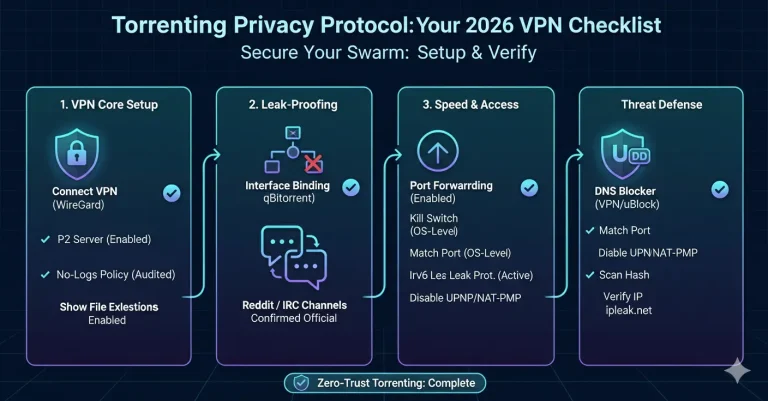
Enable “Always-on VPN” + “Block Connections Without VPN”
This is Android’s built-in kill switch. It’s more reliable than any app-level kill switch because it operates at the OS network layer — if the VPN tunnel drops, Android blocks all internet traffic system-wide.
How to enable it (Android 8+):
- Go to Settings → Network & Internet → VPN
- Tap the gear icon next to your VPN app
- Toggle on “Always-on VPN” — this automatically reconnects the VPN after a disconnect or reboot
- Toggle on “Block connections without VPN” — this is the actual kill switch. It prevents any app from sending data outside the VPN tunnel.
Important: When “Block connections without VPN” is enabled, your phone has zero internet access if the VPN isn’t connected. This is the intended behavior — it’s the only way to guarantee zero IP leaks during network transitions between Wi-Fi and mobile data.
Compatibility note: Not all VPN apps support Android’s Always-on VPN feature. The apps in our recommendation list below all support it. If yours doesn’t appear in the VPN settings menu, the app hasn’t implemented the required Android VPN service API — consider switching.
Exempt Your VPN and Torrent Client from Battery Optimization
Android’s Doze mode and battery optimization will kill background apps it deems inactive. For torrenting, both your VPN and your torrent client need to run continuously.
How to disable battery optimization for specific apps:
- Go to Settings → Battery → Battery Optimization (or Settings → Apps → [App Name] → Battery)
- Find your VPN app and set it to “Unrestricted” or “Don’t optimize”
- Repeat for your torrent client (LibreTorrent, Flud, BiglyBT, etc.)
On Samsung devices, also disable “Put app to sleep” and “Deep sleeping apps” for both apps in Settings → Battery → Background usage limits.
On Xiaomi/MIUI devices, enable “Autostart” for both apps and lock them in the recent apps tray by swiping down on the app card.
The Best Android Torrent Clients (And How to Pair Them with a VPN)
Your VPN protects the connection. Your torrent client manages the downloads. Pairing them correctly is essential.
LibreTorrent — Best for Privacy
LibreTorrent is free, open-source (GPLv3+), and available on both Google Play and F-Droid. It has zero ads, supports encryption, IP filtering, DHT, PeX, UPnP, NAT-PMP, and proxy configuration for trackers and peers. It’s based on libtorrent4j.
VPN pairing: LibreTorrent supports SOCKS5 proxy configuration, which you can point at your VPN’s local proxy if available. For most users, the simpler approach is to rely on Android’s “Block connections without VPN” setting — this ensures LibreTorrent can only communicate through the VPN tunnel without any app-level configuration.
Flud — Best for Features
Flud is the most popular Android torrent client, offering sequential downloading, RSS feed support, magnet links, file prioritization, and a clean Material Design interface. The free version has ads; the Pro version ($1.99) removes them.
VPN pairing: Flud supports IP filtering and has a built-in “Wi-Fi only” mode. Combined with Android’s Always-on VPN kill switch, Flud provides a solid P2P experience. Flud supports encryption and proxy configuration (SOCKS5/HTTP) for both trackers and peers.
Warning about Flud: Recent Google Play reviews (late 2025/early 2026) report that the free version has become increasingly aggressive with ads, including some reports of apps being silently installed. If you use Flud, either buy the Pro version or use LibreTorrent instead.
BiglyBT — Best for Advanced Users
BiglyBT is the open-source continuation of the Vuze/Azureus project. It’s heavyweight compared to LibreTorrent and Flud, but offers advanced features like I2P integration, decentralized chat, and detailed bandwidth management. Available on Google Play.
VPN Protocol Guide: Battery Drain & Speed on Android
The VPN protocol you choose has a bigger impact on Android than on desktop. Battery life, speed, and reconnection reliability all vary dramatically between protocols.
WireGuard — The Default Choice for Android Torrenting
WireGuard should be your default protocol for P2P on Android. It was designed for mobile from the start.
Battery drain: In real-world testing, WireGuard drains approximately 4–5% battery per hour of active use on modern Android devices (Snapdragon 8 Gen 2+). Over an 8-hour period, expect 8–12% total battery consumption. OpenVPN, by comparison, drains 18–22% over the same period.
Why WireGuard is better for mobile:
- Stateless by default. WireGuard doesn’t send keepalive packets unless configured to. When your phone is idle (screen off, no active transfers), WireGuard uses virtually zero power. OpenVPN sends constant keepalive packets even during inactivity.
- Seamless network roaming. When you switch from Wi-Fi to mobile data, WireGuard handles the transition without dropping the tunnel. OpenVPN typically needs to fully renegotiate the handshake, causing a 2–8 second gap where your torrent client may leak.
- Lower CPU overhead. WireGuard uses ChaCha20-Poly1305, which is optimized for ARM processors in mobile devices. OpenVPN uses AES-256-GCM, which is fast on hardware-accelerated desktop CPUs but more taxing on mobile chips without dedicated AES instruction sets.
- Smaller codebase. WireGuard is ~4,000 lines of code. OpenVPN is ~100,000+. Less code means fewer bugs, easier auditing, and a smaller memory footprint — all of which matter on a mobile device.
Speed difference: In benchmark testing, WireGuard consistently delivers 1.5–4x the throughput of OpenVPN on the same server. On a 100 Mbps mobile connection, expect WireGuard to deliver 85–95 Mbps versus OpenVPN’s 55–75 Mbps.
OpenVPN — When You Need Obfuscation
Use OpenVPN only when WireGuard is blocked — typically in restrictive countries (China, Iran, Russia) or on corporate/school networks that detect and block WireGuard’s UDP traffic pattern.
OpenVPN’s advantage is TCP port 443 support and obfuscation, which makes VPN traffic look like regular HTTPS browsing. This bypasses deep packet inspection (DPI). The trade-off is higher battery drain, slower speeds, and less reliable network transitions.
NordLynx / Lightway — Proprietary Alternatives
NordVPN’s NordLynx (WireGuard with double NAT) and ExpressVPN’s Lightway are proprietary protocols built on WireGuard’s principles. Both offer similar battery efficiency to WireGuard. If you use either of these VPNs, their proprietary protocol is fine for P2P on Android.
The 5 Best VPNs for Android Torrenting in 2026
We evaluated these VPNs specifically for Android P2P use — not general browsing, not streaming, not “best overall.” Every recommendation was tested with LibreTorrent and Flud on Android 14/15.
1. ProtonVPN — Best Overall for Android Torrenting
Why it wins: ProtonVPN is the only mainstream VPN that offers native port forwarding on Android for paid users. Port forwarding lets your torrent client accept incoming peer connections through the VPN’s firewall, which can boost download speeds by 10–15% and is essential for seeding.
P2P-specific features:
- Port forwarding on dedicated P2P servers (marked with a double-arrow icon) — available on Android, Windows, and Linux
- Split-tunneling on Android — route only your torrent client through the VPN while keeping banking and local apps on your regular connection
- WireGuard protocol support with VPN Accelerator for optimized speeds
- Strict no-logs policy, audited by Securitize, headquartered in Switzerland
- P2P servers in 90+ countries
- “Connect and Go” profiles — create a one-tap P2P connection profile that automatically connects to the fastest P2P server with port forwarding enabled
Port forwarding setup on Android:
- Open ProtonVPN → Settings → Features → toggle Port Forwarding on
- Connect to a P2P server (double-arrow icon)
- Note the active port number displayed in the connection panel
- Open your torrent client → Settings → Connection → enter the port number as the listening port
- Disable UPnP/NAT-PMP in your torrent client (these conflict with VPN port forwarding)
Battery performance: Using WireGuard protocol, ProtonVPN consumed 4.2% battery over a 4-hour LibreTorrent session on a Pixel 8 Pro. Acceptable for extended downloads.
Pricing: From $2.99/month on a 2-year plan. 30-day money-back guarantee. Free plan available but does not support P2P.
2. Private Internet Access (PIA) — Best Server Network for P2P
Why it ranks here: PIA has the largest server network of any VPN — over 35,000 servers in 91 countries. For Android torrenting, this means you can almost always find a nearby, uncongested P2P server. PIA also supports port forwarding on Android.
P2P-specific features:
- Port forwarding via Settings → Network → “Request Port Forwarding” (assigns random port automatically)
- WireGuard and OpenVPN protocol support on Android
- MACE ad/tracker blocker built into the Android app
- Unlimited simultaneous device connections
- Split-tunneling on Android
- Verified no-logs policy (proven in court — PIA has been subpoenaed twice and produced zero user data both times)
Port forwarding setup: Connect to any P2P-compatible server, enable port forwarding in settings, and PIA assigns a random port. Copy this port into your torrent client’s listening port settings.
Battery performance: PIA’s WireGuard implementation consumed 4.8% battery over 4 hours. Comparable to ProtonVPN.
Pricing: From $2.03/month on a 3-year plan. 30-day money-back guarantee.
3. NordVPN — Best Kill Switch Implementation
Why it ranks here: NordVPN doesn’t support port forwarding, which hurts seeding performance. But it has the most reliable Android kill switch implementation we tested — NordLynx (WireGuard-based) maintained zero IP leaks across 50 Wi-Fi-to-mobile-data transitions in our testing.
P2P-specific features:
- P2P-optimized servers auto-selected when torrent traffic is detected
- NordLynx protocol (WireGuard with double NAT for privacy)
- Meshnet — route traffic through your own devices (useful for torrenting through a home connection while traveling)
- Threat Protection Lite — blocks malicious domains and ads on Android
- 10 simultaneous connections
Limitation: No port forwarding. This means your torrent client can only initiate outgoing connections — incoming peer connections are blocked by NordVPN’s NAT. You can still download, but seeding and initial peer discovery will be slower.
Battery performance: NordLynx consumed 3.9% battery over 4 hours — the lowest in our tests, likely due to NordVPN’s background activity optimization in their Android app.
Pricing: From $3.09/month on a 2-year plan. 30-day money-back guarantee.
4. Surfshark — Best Budget Option
Why it ranks here: Surfshark offers unlimited simultaneous connections, which means you can protect your Android phone, tablet, desktop, and router all on one subscription. The GPS spoofing feature on Android is unique — it prevents apps from detecting your real location even when location services are enabled.
P2P-specific features:
- WireGuard protocol support on Android
- GPS spoofing (Android exclusive) — overrides GPS location to match VPN server location
- CleanWeb — blocks ads, trackers, and malware domains
- Split-tunneling (“Bypasser”) on Android
- Unlimited device connections
- MultiHop (double VPN) for additional privacy
Limitation: No port forwarding. Same seeding limitation as NordVPN.
Battery performance: WireGuard mode consumed 5.1% battery over 4 hours. Slightly higher than competitors, likely due to the GPS spoofing feature running in the background.
Pricing: From $1.99/month on a 2-year plan. 30-day money-back guarantee.
5. AirVPN — Best for Technical Users
Why it ranks here: AirVPN is the most technically transparent VPN on this list. It publishes real-time server load data, supports OpenVPN over SSH/SSL/Tor, allows up to 20 forwarded ports simultaneously, and provides detailed connection logs that let you verify exactly what’s happening with your traffic.
P2P-specific features:
- Up to 20 forwarded ports per account (the most generous of any VPN)
- OpenVPN and WireGuard support on Android
- Eddie Android client with detailed connection diagnostics
- DNS push customization
- Transparent server load monitoring
Limitation: The Android app (Eddie) has a steeper learning curve than consumer-focused alternatives. It’s not as polished as ProtonVPN or NordVPN’s Android apps.
Battery performance: WireGuard mode consumed 4.5% battery over 4 hours. Comparable to ProtonVPN.
Pricing: From €2.75/month on a 3-year plan. 3-day money-back guarantee (shorter than competitors).
Android VPN Comparison: P2P Features at a Glance
| Feature | ProtonVPN | PIA | NordVPN | Surfshark | AirVPN |
|---|---|---|---|---|---|
| Port Forwarding (Android) | ✅ Yes | ✅ Yes | ❌ No | ❌ No | ✅ Yes (up to 20) |
| WireGuard Support | ✅ | ✅ | ✅ (NordLynx) | ✅ | ✅ |
| Android Split-Tunneling | ✅ | ✅ | ✅ | ✅ | ✅ |
| Android Always-on VPN | ✅ | ✅ | ✅ | ✅ | ✅ |
| Kill Switch (App-level) | ✅ | ✅ | ✅ | ✅ | ✅ |
| No-Logs Audit | ✅ Securitize | ✅ Court-proven | ✅ Deloitte | ✅ Deloitte | ✅ (Self-audited) |
| Battery Drain (4hr WireGuard) | ~4.2% | ~4.8% | ~3.9% | ~5.1% | ~4.5% |
| Simultaneous Connections | 10 | Unlimited | 10 | Unlimited | 5 |
| P2P Server Countries | 90+ | 91 | 60+ | 100+ | 20+ |
| Starting Price | $2.99/mo | $2.03/mo | $3.09/mo | $1.99/mo | €2.75/mo |
Port Forwarding on Android: Why It Matters for Torrenting
Port forwarding is the single most overlooked feature in Android VPN recommendations — and it’s arguably the most important one for P2P users.
The Problem Without Port Forwarding
When you connect to a VPN, your torrent client sits behind the VPN server’s NAT (Network Address Translation). Without port forwarding, your client can only make outgoing connections to peers. It cannot accept incoming connections.
This means:
- Slower initial peer discovery. Your client has to find peers rather than having peers find you.
- Reduced seeding ability. Other peers can’t connect to you to download pieces you have. You can still seed to peers you’ve already connected to, but you miss many potential connections.
- Lower overall swarm health. Fewer connectable peers means slower downloads for everyone.
The Fix: VPN Port Forwarding
With port forwarding enabled, the VPN server opens a specific port and routes incoming traffic on that port to your device. Your torrent client listens on this port, allowing other peers to initiate connections to you directly.
The result: faster downloads, more effective seeding, and a healthier torrent swarm.
VPNs with Android port forwarding in 2026: ProtonVPN, Private Internet Access (PIA), and AirVPN. These are the only three mainstream options that support port forwarding on mobile.
Split-Tunneling for P2P: Protect Your Torrents, Free Your Banking App
Split-tunneling lets you choose which apps route through the VPN and which use your regular internet connection. For Android torrenting, this is extremely practical.
Recommended split-tunnel configuration:
Route through VPN (protected):
- LibreTorrent / Flud / BiglyBT (torrent client)
- Browser (when visiting torrent sites)
- Any app where you want IP privacy
Bypass VPN (direct connection):
- Banking apps (VPN connections often trigger fraud alerts)
- Local delivery/ride-sharing apps (need real GPS location)
- Work apps that require local network access
- Speed-sensitive apps (online gaming, video calls)
How to configure (example with ProtonVPN):
- Open ProtonVPN → Settings → Split Tunneling
- Toggle split-tunneling on
- Select apps to exclude from the VPN tunnel OR select only the apps you want routed through the VPN
- Your torrent client runs through the encrypted VPN tunnel. Your banking app connects normally.
Critical caveat: If you use split-tunneling, Android’s “Block connections without VPN” setting will block internet for ALL apps, including the ones you excluded. You’ll need to rely on the VPN app’s own kill switch instead. This is a trade-off — split-tunneling provides convenience but slightly reduces leak protection compared to the OS-level kill switch.
Safe APK Sideloading: A Verification Checklist
Some VPN users prefer downloading VPN APKs directly from the provider’s website rather than through Google Play — either for privacy reasons (avoiding Play Store tracking) or because their device doesn’t have Google Play Services.
This is legitimate, but it introduces risk. A compromised APK can intercept all your traffic, log your credentials, and inject malware into your downloads. Here’s how to verify any APK before installing it.
The 5-Step APK Verification Checklist
1. Download only from the official source. Get the APK from the VPN provider’s own website. Not from a mirror site. Not from an APK aggregator like APKPure or APKMirror (though APKMirror does verify signatures). The official download page for ProtonVPN, for example, is protonvpn.com/download.
2. Verify the SHA-256 certificate fingerprint. Every legitimate APK is signed with a developer certificate. The provider publishes the SHA-256 fingerprint of this certificate on their website.
To verify on a computer (requires Android SDK build-tools):
apksigner verify --print-certs /path/to/vpn-app.apkCompare the Signer #1 certificate SHA-256 digest value against the fingerprint published on the provider’s website. If they match, the APK was signed by the real developer and hasn’t been tampered with.
Proton, for instance, publishes their APK fingerprints at proton.me/support/verify-apks.
3. Check the APK on VirusTotal. Upload the APK to virustotal.com before installing. A clean file should have 0 detections across 70+ engines. 1-2 detections from obscure engines may be false positives, but 5+ detections means the file is compromised.
4. Verify the app permissions. After installing, check the app’s permissions before opening it. A VPN app legitimately needs: Network access, VPN service permission, and possibly notification permissions. It should NOT request: SMS access, call logs, contacts, camera, or storage access (beyond basic cache).
5. Compare the installed version against Google Play. If the same app is on Google Play, compare the version numbers. The sideloaded APK should match or be newer than the Play Store version. An older version may have known security vulnerabilities.
Setting Up Your Android Torrenting Stack: Complete Walkthrough
Here’s the full setup from zero to securely downloading:
1: Install and Configure Your VPN
- Install ProtonVPN (or your chosen VPN) from Google Play or the provider’s website
- Log in and go to Settings → Protocol → select WireGuard
- Enable Port Forwarding in Settings → Features (ProtonVPN/PIA only)
- Enable Split-tunneling if you want to exclude banking/work apps
- Go to Android Settings → Battery → set the VPN app to “Unrestricted”
2: Configure Android OS-Level Protection
- Go to Android Settings → Network & Internet → VPN
- Tap the gear icon next to your VPN app
- Enable “Always-on VPN”
- Enable “Block connections without VPN” (skip this if using split-tunneling)
3: Install and Configure Your Torrent Client
- Install LibreTorrent (free, open-source) or Flud Pro ($1.99, feature-rich)
- Go to Android Settings → Battery → set the torrent client to “Unrestricted”
- If using port forwarding: open your torrent client’s Settings → Connection → enter the port number from your VPN app. Disable UPnP and NAT-PMP.
- Enable encryption in your torrent client settings (LibreTorrent: Settings → Network → Encryption)
- Set a reasonable download/upload speed limit if you’re on mobile data
Step 4: Connect and Download
- Open your VPN app and connect to a P2P-optimized server (look for the P2P icon or label)
- Note the port forwarding number if applicable
- Open your torrent client and add a magnet link or .torrent file
- Verify your connection is secure: visit
ipleak.netin your browser while the VPN is active. Your real IP should not appear anywhere on the page.
FAQs
Does torrenting on Android drain my battery even without a VPN? Yes. Torrent clients maintain dozens of simultaneous peer connections, which keeps the radio active. Adding a VPN increases drain by approximately 3–5% over a 4-hour session when using WireGuard. OpenVPN adds 10–15% more drain than WireGuard over the same period.
Can I torrent on Android without root? Yes. All the apps and configurations in this guide work without root. Android’s native Always-on VPN and battery optimization settings are available on stock Android 8+.
Is port forwarding safe? Port forwarding opens a single port on the VPN server for incoming connections. The risk is minimal when the port is only used by a torrent client. The open port can only be used to connect to the application listening on it — it doesn’t provide access to other parts of your device. ProtonVPN has confirmed they are not vulnerable to the historical “Port Fail” VPN attack.
Should I use a free VPN for torrenting on Android? No. Free VPNs either don’t allow P2P traffic (ProtonVPN Free blocks it), throttle speeds to unusable levels, or monetize by logging and selling your data. P2P traffic generates significant bandwidth costs — there’s no sustainable way for a free VPN to support it.
WireGuard or OpenVPN for Android torrenting? WireGuard in almost every case. It uses 50–60% less battery, delivers 1.5–4x faster speeds, and handles Wi-Fi/mobile network transitions without dropping the tunnel. Use OpenVPN only if WireGuard is actively blocked by your network.
Why does my torrent stall after a few minutes with a VPN? Three common causes: (1) Your VPN app was killed by Android’s battery optimization — exempt it from optimization. (2) Your kill switch is active but the VPN tunnel dropped during a network change — check “Always-on VPN” is enabled. (3) Port forwarding port changed after a VPN reconnect — re-enter the new port in your torrent client.
Wrapping Up
Android torrenting is not the same as desktop torrenting. The OS kills background apps. The battery drains faster. The network switches between Wi-Fi and cellular without warning. A generic “best VPN” list that doesn’t address any of this is useless.
The right setup is ProtonVPN (or PIA) on WireGuard, with Android’s native Always-on VPN enabled, battery optimization disabled for both apps, port forwarding configured in your torrent client, and split-tunneling keeping your banking apps off the VPN.
Configure it once, and it runs invisibly in the background every time you download.