Is TorrentGalaxy Safe? How to Identify Verified Uploaders and Avoid Fake Mirrors
Last updated: February 7, 2026 | A zero-trust approach to navigating TGx safely
“Is TorrentGalaxy safe?”
It’s the most common question people ask — and it’s the wrong question. The honest answer is that no torrent site is universally “safe” or “unsafe.” TorrentGalaxy is a platform. It hosts files uploaded by thousands of different users with different intentions. Some are verified contributors with years of clean uploads. Others are anonymous accounts that appeared yesterday and uploaded an executable (.exe) disguised as a 4K movie.
The right question is: How do I navigate TorrentGalaxy safely?
That’s what this guide answers. We’ll walk through how to verify you’re on the real TorrentGalaxy (not a phishing mirror), how to decode TGx’s uploader reputation system through its integrated community feedback loop, how to spot malicious torrents before they reach your hard drive, and what to do after downloading to confirm file integrity.
Think of it as a zero-trust framework for torrenting. Don’t trust the site. And, don’t trust the uploader. Don’t trust the file. Verify everything.
Before anything else — get a Swiss-based, no-logs VPN. A VPN won’t protect you from malware inside a downloaded file, but it does encrypt your connection, mask your IP address from the torrent swarm, and prevent your ISP from monitoring your activity.
Section 1: Identifying the “True” TorrentGalaxy
The first safety risk isn’t a bad torrent — it’s a fake website. Dozens of phishing mirror sites and clone sites impersonate TorrentGalaxy, copying its layout pixel-for-pixel while injecting malicious JavaScript, serving adware, or harvesting any credentials you enter. Before you search for a single torrent, you need to confirm you’re on the real TGx.
Domain Verification: Reading the SSL Certificate
Every legitimate TorrentGalaxy domain uses HTTPS with a valid SSL certificate. Here’s how to check:
- Look for the padlock icon in your browser’s address bar. Click it.
- View the certificate details. In Chrome, click “Connection is secure” → “Certificate is valid.” In Firefox, click the padlock → “Connection Secure” → “More Information” → “View Certificate.”
- Check the issued-to domain. It should match the URL you’re visiting exactly. A certificate for
torrentgalaxy.todisplayed on a site calledtorrentga1axy.to(with a numeral “1” replacing the letter “l”) is a dead giveaway of a clone site. - Verify the certificate authority. Legitimate TGx domains typically use Cloudflare’s SSL certificates (issued by “Cloudflare Inc” or “Google Trust Services”). A self-signed certificate or one from an unfamiliar authority is a red flag.
Red flags that indicate a phishing mirror:
- No HTTPS / no padlock icon — close the tab immediately
- Domain misspellings:
torentgalaxy(single “r”),torrentga1axy(numeral),torrentgalaxy.buzz,.lol,.is— these are not official domains - Browser warnings about invalid certificates (
NET::ERR_CERT_AUTHORITY_INVALID) — this means the site’s encryption is compromised or fraudulent - The site asks you to log in or create an account before you can browse — TorrentGalaxy does not require registration to search or download
The Footer Check: Verifying Through Official Channels
Even a perfect-looking clone can fool a visual inspection. Cross-reference the domain you’re visiting against TorrentGalaxy’s official status channels:
- Official status pages like galaxytorrent.to and proxygalaxy.me list confirmed working domains
- Reddit communities — /r/torrents and TGx-specific threads regularly verify which domains are official
- IRC channels — TGx staff communicate domain changes through their official IRC. If a domain isn’t confirmed there, treat it as suspect.
- TorrentFreak — the torrent news site often reports on domain changes for major platforms, including TGx
Rule of thumb: If you found a TorrentGalaxy URL through a random Google result, a comment section, or a social media post — verify it through at least one official channel before entering it in your browser. Clone sites rank in search results too.
Section 2: Decoding the TGx Reputation System
TorrentGalaxy has one of the stronger uploader verification systems among public torrent sites. Understanding how it works is the single most effective way to avoid downloading malware. This is your primary vetting layer.
The Color-Coded Badge System
When you browse torrent listings on TGx, you’ll notice colored skull-and-crossbones icons (or badge indicators) next to uploader names. These aren’t decorative. Each color represents a different trust tier, assigned by TGx’s moderation team based on the uploader’s track record:
🟢 Green Skull — VIP Uploader The highest trust tier. VIP uploaders have a long, verified history of uploading clean, correctly-labeled torrents. They’ve earned this status through sustained community contribution and have been endorsed by existing VIP or Trusted members. Green skull uploads are the safest option available on any public torrent site.
🟣 Pink/Purple Skull — Trusted Uploader The second tier. Trusted uploaders have demonstrated consistent quality across multiple uploads. They’ve been vetted by the community and moderation team. Pink skull torrents are generally safe, though slightly less established than VIP contributors.
🔵 Blue Skull — Helper Helpers are active community members who contribute through comments, advice, and moderation assistance. Their uploads are considered reliable, though they haven’t yet reached the upload volume or tenure required for Trusted or VIP status.
🔧 [Mod] Tag — Moderator Moderators manage the site itself. Their uploads and endorsed content carry the highest institutional trust. If a moderator has commented on a torrent confirming its legitimacy, take that as a strong positive signal.
⚠️ No Badge / “Anonymous” — Unverified Uploader This is where your caution needs to increase tenfold. Anonymous uploads have no reputation backing. The uploader could be a new legitimate user — or they could be distributing malware, bloatware, or copyright-trap files planted by anti-piracy organizations. We’ll cover how to evaluate these uploads in Section 3.
The “Anonymous” Red Flag
On TGx’s torrent listings, you’ll sometimes see the uploader listed simply as “Anonymous.” This means the user uploaded without an account or with a brand-new, unverified account. Anonymous uploads make up a significant portion of TGx’s library — and they represent the highest-risk category.
This doesn’t mean every anonymous upload is dangerous. But it means you’re operating without the safety net of community reputation. When you see an anonymous upload, apply every check in Section 3 before downloading.
Vetting the Uploader’s Track Record
Before downloading any torrent — even from a badged uploader — click on the uploader’s username. TGx displays their profile page, which includes:
- Upload history: How many torrents have they uploaded? How long have they been active? An uploader with 500+ clean uploads over two years is dramatically safer than one with 3 uploads from last week.
- Community feedback: Read the comments on their previous uploads. Are users reporting clean files, correct labeling, and good seed/peer ratios? Or are there warnings about malware, fake files, or misleading descriptions?
- Category consistency: A trusted movie uploader suddenly posting a software crack? That’s a pattern break worth investigating further. Established uploaders tend to stick to their niche.
- Seeder/leecher ratio: Healthy torrents from trusted uploaders typically show strong seeder counts relative to leechers. A “popular” movie with 2 seeders and 400 leechers from a new account is suspicious.
The vetting habit: Spend 30 seconds checking the uploader before every download. It’s the single highest-ROI safety practice in torrenting. Think of it as vetting the uploader’s reputation via the integrated community feedback loop — the data is right there on the profile page.
Section 3: Anatomy of a Malicious Torrent — Spotting the Bait
Even on a verified domain with a trusted uploader system, malicious files slip through. Understanding the patterns of fake and weaponized torrents lets you catch them before they ever execute on your machine.
The Size-to-Content Mismatch
This is the most reliable red flag and the easiest to check. Every category of content has expected file sizes:
| Content Type | Typical Size Range | Suspicious If… |
|---|---|---|
| 1080p Movie (2 hours) | 2–8 GB | Under 500 MB or a single small file |
| 4K UHD Movie | 15–60 GB | Under 2 GB |
| TV Episode (1080p) | 500 MB–3 GB | Under 50 MB |
| AAA Video Game | 20–100+ GB | Under 1 GB |
| Software (major application) | 500 MB–5 GB | Under 10 MB (single .exe) |
| Music Album (FLAC) | 200–600 MB | Under 10 MB |
| eBook (PDF/EPUB) | 1–50 MB | Contains .exe files at all |
A torrent labeled “Avatar: The Way of Water 8K HDR REMUX” that weighs in at 50 MB? That’s not a movie. It’s malware. Close the listing.
A “Photoshop 2026 Full Crack” at 4 MB with a single executable (.exe)? Same thing.
Always compare the listed file size against what you’d reasonably expect for that type of content. When in doubt, search for the expected size of that specific release on torrent forums or tracker databases.
The Extension Trap
Malware distributors disguise dangerous file types as harmless media. Here’s what to watch for:
Dangerous extensions masquerading as media:
.mkv.exe— An executable disguised with a video extension. Windows may hide the.exepart if “show file extensions” is disabled (it is by default). Always enable “Show file extensions” in Windows Explorer..avi.scr— A screensaver file (executable) pretending to be a video. Screen saver files (.scr) execute code when opened..mp4.bat— A batch script (.bat) that will execute commands on your system..pdf.ps1— A PowerShell script (.ps1) disguised as a PDF. PowerShell scripts can download and execute arbitrary code..zip/.rarcontaining a single.exe— Legitimate software may come archived, but a “movie” inside a .zip that contains an executable is always malware.
Safe media extensions that cannot contain executable code:
- Video:
.mkv,.mp4,.avi,.mov,.webm - Audio:
.mp3,.flac,.ogg,.wav,.aac - Documents:
.pdf,.epub,.mobi - Images:
.jpg,.png,.gif,.webp
The rule: If a media file has a double extension (.mkv.exe) or comes as a standalone executable when you expected a video, delete it. No exceptions.
The “Codec Update” Scam
This is one of the oldest tricks in the torrent malware playbook, and it still catches people in 2026.
Here’s how it works: You download what looks like a video file. You open it in your media player. Instead of playing, a dialog box appears — either from the “player” or from a text file included in the torrent — telling you that you need to “download a new codec” or “update your video driver” to play the file. It provides a link to download the “fix.”
That download is malware. Every time.
Why the scam works: It exploits the assumption that media files require special software to play. In reality, modern media players handle virtually every format natively:
- VLC Media Player plays every mainstream video and audio format without additional codecs. If VLC can’t play it, the file is corrupted or fake — not missing a codec.
- MPC-HC (Media Player Classic) similarly handles all common formats out of the box.
- mpv is a lightweight alternative that requires zero configuration.
The rule: If anything associated with a torrent — a text file, a popup, a “readme” — tells you to download additional software, a codec pack, a driver update, or a “fix,” it’s a click-fix attack. Delete the torrent. Report the uploader. Move on.
The Comment Section Is Your Early Warning System
Before downloading, always scroll down to the comments on a torrent listing. TGx’s community comment vetting system is surprisingly effective. Users who download first often report:
- “Clean file, works perfectly” — positive signal, especially with multiple confirmations
- “MALWARE — do not download” — self-explanatory
- “Wrong file / fake / not what’s described” — saves you the bandwidth
- “No seeds, dead torrent” — saves you the wait
If a torrent has zero comments and is from an anonymous uploader, treat it as high-risk. If it has multiple comments confirming the file is clean, from a badged uploader, your confidence level goes up significantly.
Section 4: The Post-Download Protocol
You’ve checked the domain. You’ve vetted the uploader. Also, verified the file size and extensions. You’ve read the comments. You’ve downloaded the file. Now what?
Don’t open it yet. The post-download verification step is where you catch anything that slipped through the earlier filters.
VirusTotal: Scan Before You Open
VirusTotal is a free online scanner that runs your file through 70+ antivirus engines simultaneously. It’s the single most effective tool for catching malware in downloaded files.
For files under 650 MB:
- Go to virustotal.com
- Click “Choose file” and upload the downloaded file
- Wait for the scan results
- Review the detections. Zero detections across all engines = likely clean. 1-2 detections from obscure engines may be a false positive (antivirus software sometimes flags torrent-distributed files incorrectly). 5+ detections = delete the file.
For files too large to upload (most video files): Use the SHA-256 hash instead. A hash is a unique digital fingerprint for a file — if even a single byte changes, the hash changes completely.
- Open Command Prompt (Windows) or Terminal (Mac/Linux)
- Run:
certutil -hashfile "filename.mkv" SHA256(Windows) orshasum -a 256 filename.mkv(Mac/Linux) - Copy the MD5 or SHA-256 hash output
- Go to virustotal.com → “Search” tab → paste the hash
- If the hash has been scanned before, you’ll see the results instantly
Pro tip: Established release groups and verified uploaders sometimes include the SHA-256 hash in the torrent description or an included NFO file. Compare the hash of your downloaded file against the listed hash. If they match, the file hasn’t been tampered with. If they don’t, the file was modified after the original upload — delete it.
Understanding False Positives
Not every antivirus detection means you’ve downloaded malware. Torrent-distributed software — especially cracks, keygens, and modified executables — frequently trigger false positive detections because:
- They modify system files or registry entries (which is also what malware does)
- They’re packed with compression tools that antivirus engines flag as “potentially unwanted programs” (PUPs)
- Some antivirus vendors flag all cracked software by policy, regardless of whether it contains actual malicious code
How to handle a potential false positive:
- Check how many engines flagged it on VirusTotal. If it’s 1-3 out of 70+, and the flagging engines are obscure, it’s likely a false positive.
- Read the detection name. “HackTool.Win32.Crack” or “PUP.Optional.Keygen” are typically policy-based flags, not malware detections. “Trojan.GenericKD” or “Backdoor.Agent” are real threats.
- Cross-reference with the torrent’s community comments. If dozens of users report the file works fine with no issues, a single antivirus detection is probably a false positive.
- When in doubt, test in a sandbox (see below).
Metadata Stripping
This is a quick note, but an important one. Files you download — and especially files you share — can contain embedded metadata that reveals information about the file’s origin, modification history, and sometimes the user who created it.
- Documents (PDF, DOCX): May contain author names, editing history, and software versions
- Images (JPEG, PNG): May contain EXIF data with GPS coordinates, camera model, and timestamps
- Video files: May contain encoding software info and creation dates
If you’re sharing files onward, strip this metadata using tools like ExifTool (for images), FFmpeg (for video), or mat2 (a general-purpose metadata removal tool). For personal downloads, metadata is less of a concern — but it’s worth knowing it exists.
Sandboxing 101: Test Without Risk
If you’ve downloaded software (not media) from a torrent and you’re not 100% confident it’s clean, run it in a sandbox before installing it on your main system. A sandbox is an isolated environment — anything that happens inside it doesn’t affect your real operating system.
Windows Sandbox (built into Windows 10/11 Pro and Enterprise):
- Open “Turn Windows features on or off”
- Check “Windows Sandbox” and restart
- Launch Windows Sandbox from the Start menu
- Copy the downloaded file into the sandbox window
- Run it there. If it behaves normally, you have higher confidence. If it tries to install unexpected programs, modify system settings, or behave suspiciously, you’ve caught it in a contained environment.
Any.Run (cloud-based sandbox): Any.Run lets you upload and execute files in a virtual machine that runs in your browser. It records every system call, network connection, and file modification the program makes. This is the most thorough option — you can see exactly what a program does before deciding whether to run it on your real machine.
VirtualBox / VMware (full virtual machine): For maximum isolation, run suspicious software inside a full virtual machine. Install a clean copy of Windows in VirtualBox, take a snapshot, test the software, and restore the snapshot when you’re done. Nothing persists.
Section 5: The “Galaxy Checkpoint” & Ad Safety
The TGx:Checkpoint Screen — Is It a Virus?
No. The “TGx:Checkpoint” screen is not malware. It’s TorrentGalaxy’s browser fingerprinting verification system — a DDoS protection layer that checks whether you’re a real human or an automated bot.
Here’s what happens technically: When you access TorrentGalaxy, a JavaScript file called shades.js runs a browser fingerprint check. It collects non-personal data points about your browser (screen resolution, installed fonts, WebGL capabilities) and generates a hash. This hash is sent to TGx’s server to verify you’re a legitimate visitor. A countdown timer displays while this process completes.
When it works normally: The countdown hits zero, the verification passes, and the site loads.
When it loops: Sometimes, the checkpoint counts down to zero and then… starts over. And over. This is the “Galaxy Checkpoint loop” — a known issue that prevents you from accessing the site.
Fixes for the checkpoint loop:
- Clear cookies and cache for the TorrentGalaxy domain specifically (not all cookies — just the site-specific ones)
- Temporarily disable your ad blocker. uBlock Origin and similar tools sometimes block
shades.jsor the callback tohub.php, which prevents the verification from completing. Whitelist the TGx domain, pass the checkpoint, then re-enable your blocker. - Switch browsers. Firefox and Brave handle the checkpoint more reliably than Chrome in some configurations.
- Use incognito/private mode to start with a completely clean session — no cached data, no stored cookies, no conflicting extensions.
- Try a different proxy or mirror if the checkpoint persists. Some proxies interfere with the verification script.
Hardened Browsing: Blocking Malicious JavaScript Injection
The TGx:Checkpoint is legitimate. The ads on third-party proxy sites are not.
Proxy operators frequently inject their own JavaScript into the page — malicious scripts that can redirect you to phishing sites, trigger drive-by downloads, serve adware and bloatware installers, or mine cryptocurrency using your browser. This malicious JavaScript injection is the most common attack vector on torrent proxy sites.
Your defense stack:
uBlock Origin (essential — install this before visiting any torrent site):
- Available for Firefox, Chrome, Edge, and Brave
- Blocks malicious ads, popup redirects, crypto miners, and tracking scripts
- Uses regularly-updated filter lists that specifically target torrent site ad networks
- Lightweight — minimal impact on browsing speed
Brave Browser (built-in protections):
- Ships with an integrated ad and tracker blocker enabled by default
- Blocks fingerprinting scripts (useful against aggressive tracking on proxy sites)
- HTTPS-only mode prevents downgrade attacks
Firefox with Strict Tracking Protection:
- Set Enhanced Tracking Protection to “Strict” in Privacy & Security settings
- Combined with uBlock Origin, this provides the strongest protection available in any mainstream browser
Additional measures:
- Disable JavaScript globally using NoScript (Firefox) for maximum protection, then whitelist only the domains you trust. This is aggressive but eliminates drive-by attacks entirely.
- Never allow notifications from torrent sites. The “Allow notifications?” popup is almost always used to push malicious ad notifications to your desktop.
- Never click “Allow” on any download prompt that you didn’t initiate. If a popup offers a “video player update,” a “security scan,” or a “download accelerator” — it’s a click-fix attack.
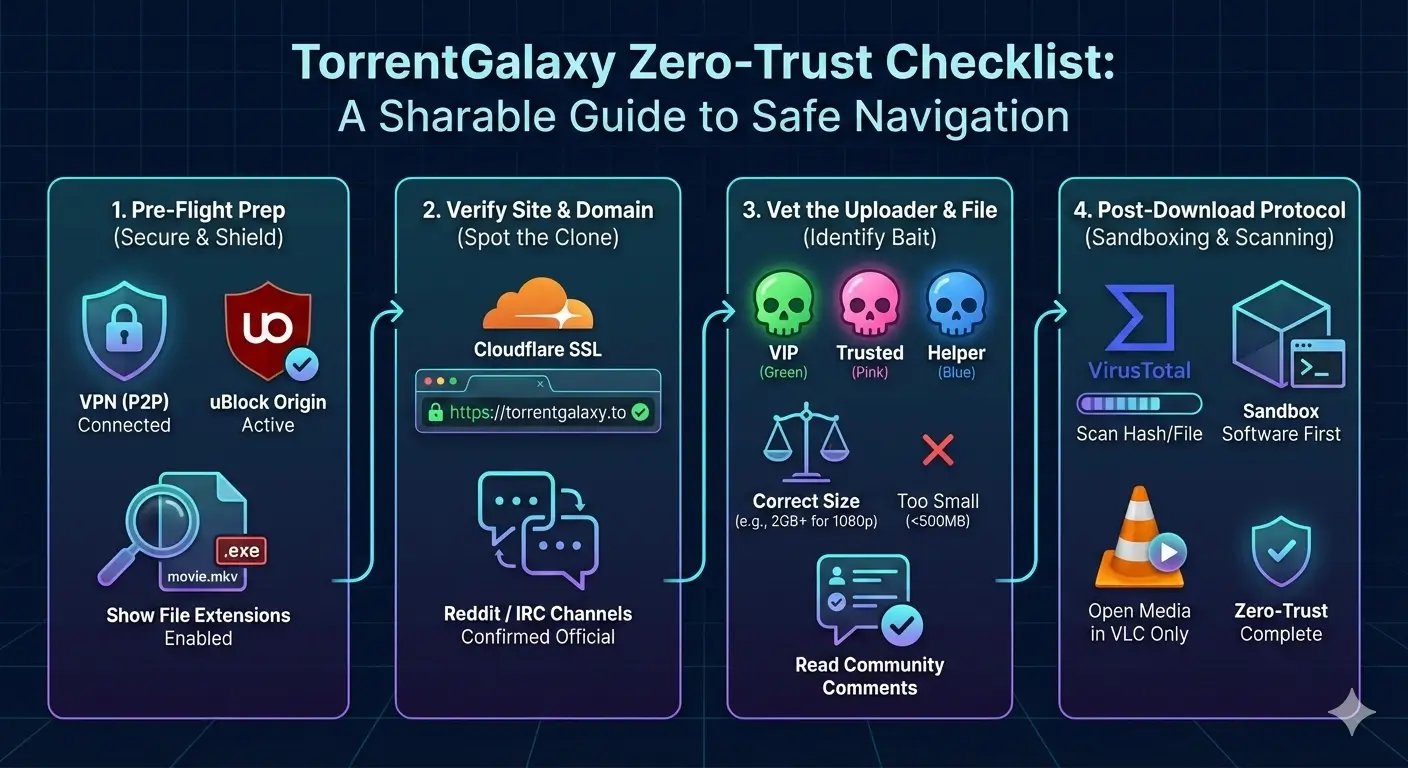
Your “Zero-Trust” Torrenting Checklist for 2026
Zero-trust means you verify at every layer. Here’s the complete protocol, condensed into a repeatable checklist:
Before You Visit
- VPN is connected to a P2P-optimized server
- uBlock Origin (or Brave’s built-in blocker) is active
- Browser is set to show file extensions (Windows: File Explorer → View → Show → File name extensions)
Verifying the Site
- URL matches an official TorrentGalaxy domain — no misspellings, no suspicious TLDs
- SSL certificate is valid (padlock icon, issued by Cloudflare or a recognized CA)
- Domain is confirmed through at least one official channel (status page, Reddit, IRC)
- Site does not ask for login credentials before allowing you to browse
Vetting the Torrent
- Uploader has a colored badge (Green VIP > Pink Trusted > Blue Helper)
- If no badge / anonymous: apply extra scrutiny to every other check
- Uploader’s profile shows consistent upload history and positive community feedback
- File size matches expected range for the content type
- No double extensions (
.mkv.exe,.pdf.ps1,.avi.scr) - No single-file executables claiming to be movies or games
- Healthy seed/peer ratio (strong seeders relative to leechers)
- Community comments confirm the file is clean and correctly labeled
- No included “readme” or text file telling you to download additional codecs or drivers
After Downloading
- Run the file through VirusTotal (upload or hash scan) before opening
- Compare the SHA-256 hash against the uploader’s listed hash (if provided)
- For software: test in Windows Sandbox, Any.Run, or a virtual machine before installing on your main OS
- For media: open only in VLC, MPC-HC, or mpv — never in a “player” bundled with the torrent
- Scan with your local antivirus as a secondary check
- If anything looks wrong post-download — unexpected installer screens, permission requests, browser redirects — stop, delete, and report
FAQs
Is TorrentGalaxy safe to use? TorrentGalaxy is one of the safer public torrent sites because every torrent on the platform is tagged with uploader verification status. However, “safe” depends entirely on your behavior. Downloading from VIP and Trusted uploaders, checking file sizes, scanning with VirusTotal, and using a VPN makes the experience significantly safer than downloading blindly.
What do the colored skulls mean on TorrentGalaxy? Green skull = VIP (highest trust). Pink/purple skull = Trusted. Blue skull = Helper. [Mod] tag = Moderator. No badge = unverified/anonymous. Always prioritize downloads from badged uploaders.
How do I know if a TorrentGalaxy mirror is real or a phishing clone? Check the SSL certificate (valid, issued by Cloudflare), verify the domain through official status pages or community channels (Reddit, IRC), and watch for misspellings in the URL. If the site asks for login credentials before you can browse, it’s fake.
What is the TGx:Checkpoint screen? It’s a browser fingerprinting verification system that protects TorrentGalaxy from DDoS attacks and bots. It’s not malware. If it loops without loading the site, clear your cookies, temporarily disable your ad blocker, or try a different browser.
Should I worry about false positive antivirus detections on torrented files? Sometimes. Policy-based detections like “HackTool” or “PUP.Optional” on software cracks are often false positives. But detections labeled “Trojan,” “Backdoor,” or “Ransomware” from multiple engines should be taken seriously. When in doubt, test in a sandbox.
Can a video file (.mkv, .mp4) contain malware? Standard video files cannot execute code. But an executable disguised as a video (.mkv.exe) can. Enable “Show file extensions” in Windows to see the real extension. If a “video” file asks you to download a codec to play it, it’s a scam — VLC plays everything without additional software.
What’s the safest way to download from TorrentGalaxy? Use a VPN → verify the domain → download only from VIP/Trusted uploaders → check file size and extensions → read comments → scan with VirusTotal after downloading → open media only in VLC → test software in a sandbox first. This zero-trust protocol eliminates the vast majority of risk.
Wrapping Up
TorrentGalaxy is as safe as you make it.
The platform provides real tools for vetting what you download — uploader badges, community comments, file metadata, and seeder metrics. Most people ignore all of them. They see the file name, click download, and hope for the best. That’s how malware gets installed.
The zero-trust approach flips this. Trust nothing by default. Verify the domain. Vet the uploader’s track record. Inspect the file before opening it. Sandbox anything executable. Build the habit, and it takes less than a minute per download.
That minute is the difference between a clean system and a compromised one.
Bookmark this page, enable uBlock Origin, keep your VPN running, and torrent like someone who knows what they’re doing — because now you do.