Why You Need a VPN for Torrenting (The 2026 Survival Guide)
Last updated: February 7, 2026 | Technical guide for TorrentGalaxy users
Here’s what nobody tells you when you click a magnet link on TorrentGalaxy: you aren’t just downloading a file. You are joining a swarm — a public network of hundreds or thousands of people all sharing pieces of the same file simultaneously. And every single person in that swarm can see your home IP address.
That IP address is your digital home address. It ties directly to your ISP account, your name, and your physical location. Without a VPN, you hand this information to every peer in the swarm — including copyright trolls running automated monitoring bots whose entire business model is logging IP addresses and sending legal threats.
This guide isn’t a “What is a VPN?” explainer for beginners. You’re on TorrentGalaxy — you already know what encryption is. This is a technical breakdown of how P2P exposure actually works, why a VPN is the minimum viable protection for anyone using BitTorrent in 2026, and the advanced configurations (interface binding, port forwarding) that separate people who get DMCA notices from people who don’t.
Our recommended VPN for torrenting is ProtonVPN — Swiss-based, audited no-logs policy, WireGuard support, and the only mainstream VPN with native port forwarding on all platforms.
How the Swarm Exposes You
To understand why you need a VPN, you first need to understand exactly what happens when you open a torrent.
The Peer List: Your IP Address Is Public
Open qBittorrent, LibreTorrent, or any BitTorrent client. Start a download. Now click the “Peers” tab at the bottom of the window.
You’ll see a list. Each row is another person sharing the same file. And each row displays an IP address — their real IP address if they’re not using a VPN, or a VPN server’s IP if they are.
Now understand this: if you can see their IP addresses, they can see yours. And so can anyone else connected to that swarm. This isn’t a vulnerability or a bug — it’s how BitTorrent works. The protocol requires peers to exchange IP addresses to establish connections. The Distributed Hash Table (DHT) and Peer Exchange (PeX) systems extend this further, broadcasting your IP to peers you haven’t even directly connected to yet.
Every magnet link you click adds your IP address to a publicly queryable list.
How Copyright Trolls Use This Against You
Copyright enforcement agencies don’t need special tools or government access to identify you. They use the same protocol you do.
Here’s their process:
- A monitoring company (like Maverickeye, Guardaley, or MarkMonitor) joins the torrent swarm for a specific file — typically a new movie, TV show, or game release.
- Their automated scripts log every IP address they see in the peer list, along with timestamps and the torrent’s info hash.
- They match IP addresses to ISPs using publicly available WHOIS data and IP geolocation databases.
- They send bulk “copyright infringement” notices to those ISPs.
- Your ISP forwards the notice to you — a DMCA takedown, a “Six Strikes” warning, or (in some jurisdictions) a court subpoena to identify you by name for a settlement demand.
This entire chain — from your magnet link click to a legal notice in your mailbox — requires exactly one piece of information: your IP address in the swarm.
A VPN replaces your real IP with the VPN server’s IP. The monitoring bot sees ProtonVPN’s server in Switzerland, not your home connection in Dallas. They can’t send a notice to an ISP because the VPN provider’s address doesn’t resolve to a subscriber name — especially when that provider has a verified no-logs policy and is headquartered in a jurisdiction (Switzerland) with strong privacy protections.
The Technical Trifecta: Encryption, Tunneling, and Shared IPs
A VPN provides three distinct layers of protection for P2P traffic. Most “What is a VPN?” guides lump these together. They’re different, and understanding each one tells you exactly what you’re protected against.
Layer 1: Encryption — Hiding What You’re Doing
When you connect to a VPN, all traffic between your device and the VPN server is encrypted using either AES-256 (OpenVPN, IKEv2) or ChaCha20-Poly1305 (WireGuard). Both are considered unbreakable by current standards.
What this protects against: Your ISP can see that you’re sending data, but they cannot see what that data is. Without a VPN, your ISP sees BitTorrent protocol headers, the filenames you’re downloading, and the tracker URLs you’re connecting to. With a VPN, they see a stream of encrypted gibberish flowing to a VPN server’s IP address. They can’t tell if you’re watching Netflix, sending email, or downloading a 50 GB file from TorrentGalaxy.
This prevents bandwidth throttling — the practice where ISPs detect BitTorrent traffic (typically via deep packet inspection) and intentionally slow down your connection. ISPs can’t throttle what they can’t identify.
Layer 2: Tunneling — Creating a Private Pipe
Encryption protects the contents of your traffic. Tunneling protects the routing. When you use a VPN, your traffic enters an encrypted tunnel at your device and exits at the VPN server. The VPN server then forwards it to its destination (trackers, DHT nodes, peers).
What this protects against: Network-level surveillance. Your ISP, your router, your workplace network admin — none of them can see your traffic’s destination. They see traffic flowing to one IP address (the VPN server). They don’t see the dozens of BitTorrent peer connections happening on the other side of that tunnel.
The tunneling protocol determines the performance characteristics:
| Protocol | Encryption | Speed | Battery (Mobile) | Best For |
|---|---|---|---|---|
| WireGuard | ChaCha20-Poly1305 | Fastest | Lowest drain (~4%/4hr) | Torrenting (default choice) |
| OpenVPN UDP | AES-256-GCM | Fast | High drain (~12%/4hr) | Censorship bypass (obfuscation support) |
| OpenVPN TCP | AES-256-GCM | Moderate | High drain | Restrictive networks (port 443 mimics HTTPS) |
| IKEv2/IPSec | AES-256 | Fast | Moderate | Mobile (good network switching) |
For torrenting, use WireGuard. It’s the fastest protocol, uses the least battery on mobile, and handles network transitions (Wi-Fi to cellular) without dropping the tunnel. OpenVPN is only necessary if WireGuard is actively blocked on your network.
Layer 3: Shared IP Addresses — Hiding in a Crowd
This is the layer most people don’t think about, but it’s critical for legal protection.
When you connect to a VPN server, you share that server’s IP address with dozens or hundreds of other simultaneous users. If a copyright troll logs the VPN server’s IP in a torrent swarm, that IP address corresponds to hundreds of different people — not just you. Combined with a verified no-logs VPN (one that has been independently audited or court-tested to confirm they keep zero connection records), it becomes functionally impossible to attribute a specific download to a specific user.
This is why VPN provider jurisdiction matters. A Swiss VPN (ProtonVPN) or a Panama-based VPN (NordVPN) operates under privacy laws that don’t compel user data disclosure. A US or UK-based VPN could be legally forced to start logging.
Critical Feature: Kill Switch vs. Interface Binding
You’ve connected to your VPN. Your traffic is encrypted. Your IP is masked. You start downloading.
Then your VPN drops for 3 seconds. Maybe the server restarted. Maybe your Wi-Fi glitched. For those 3 seconds, your torrent client keeps running — but now it’s sending traffic over your real, unprotected internet connection. Your home IP address appears in the swarm. A monitoring bot captures it.
Three seconds is all it takes. This is why leak protection isn’t optional — it’s the most important configuration in your entire setup.
The Kill Switch: Reactive Protection
A kill switch monitors your VPN connection and blocks all internet traffic if the VPN drops. Most reputable VPN apps include one.
The problem: Kill switches are software-based and reactive. They detect the VPN disconnection and then block traffic. There’s a gap — however small — between the VPN dropping and the kill switch activating. During that gap, packets can leak.
On desktop, app-level kill switches also fail during:
- System reboots (the torrent client may auto-start before the VPN app connects)
- VPN app crashes (if the app itself crashes, its kill switch crashes too)
- OS updates or restarts
For Android users: Use Android’s native “Block connections without VPN” setting instead of (or in addition to) the app-level kill switch. It operates at the OS level and is more reliable. Go to Settings → Network & Internet → VPN → [gear icon] → toggle “Block connections without VPN” on.
Interface Binding: Proactive, 100% Leak-Proof Protection
Interface binding is the gold standard. Instead of reactively blocking traffic after a VPN drop, it proactively restricts your torrent client to only communicate through the VPN’s network interface. If the VPN isn’t connected, the torrent client can’t send or receive a single byte — not because something is blocking it, but because the network path it’s configured to use doesn’t exist.
This is mathematically leak-proof. No timing gap. No software dependency. And, no race condition during reboots.
How to Bind qBittorrent to Your VPN Interface
Step 1: Identify your VPN’s network interface name.
Connect to your VPN, then find the interface name:
Windows (PowerShell):
Get-NetAdapterLook for entries like ProtonVPN TUN, NordLynx, Wintun, or Local Area Connection 2. The interface that appears when VPN is connected and disappears when it’s not is your VPN adapter.
Mac (Terminal):
ifconfigLook for utun3, utun4, or similar. WireGuard-based VPNs typically create utun interfaces.
Linux (Terminal):
ip link showLook for wg0 (WireGuard), tun0 (OpenVPN), or proton0.
Pro tip: If you’re not sure which interface is the VPN, disconnect the VPN and run the command again. The interface that disappears is your VPN adapter. Reconnect and note its exact name.
Step 2: Configure qBittorrent.
- Open qBittorrent → Tools → Options (or press
Alt+O) - Click the Advanced tab in the left sidebar
- Find “Network Interface” (usually the second or third option)
- Change it from “Any Interface” to the VPN interface name you identified (e.g.,
ProtonVPN TUN,wg0,utun4) - Click Apply → OK
Step 3: The “total failure” test — verify it works.
This step is not optional. You must test the binding to confirm it’s working.
- Start downloading a legal torrent (a Linux ISO from ubuntu.com/download works well)
- Wait for the download to reach full speed
- Disconnect your VPN manually while the download is running
- Watch qBittorrent: the download speed should drop to 0.0 KiB/s immediately and stay there. No data should transfer at all.
- Reconnect your VPN. The download should resume automatically within a few seconds.
If the download continued after you disconnected the VPN — even for a moment — the binding isn’t configured correctly. Go back to Step 2 and double-check the interface name.
Important note: If you switch VPN protocols (e.g., from OpenVPN to WireGuard), the network interface name will change. Always re-verify the binding after changing protocols or VPN apps.
Interface Binding on Android (LibreTorrent / Flud)
Android torrent clients don’t support interface binding directly. Instead, use Android’s “Block connections without VPN” OS setting as described above — it provides equivalent protection at the system level. Combined with exempting both your VPN app and torrent client from battery optimization, this creates a reliable mobile kill switch.
Port Forwarding: The Secret to High-Speed Seeding
Port forwarding is the most impactful performance feature for P2P that most VPN guides completely ignore.
The “Passive” Problem
When you connect to a VPN, your device sits behind the VPN server’s NAT firewall. This firewall blocks all unsolicited incoming connections by default — which means other peers in the torrent swarm cannot initiate connections to you. You can only connect outward to them.
This makes you “unconnectable” in BitTorrent terms. You can still download — your client reaches out to other peers and pulls data. But you miss half the swarm: the peers who would have connected to you if they could reach you. Your download speeds are lower. Your seeding is effectively crippled.
In qBittorrent, you’ll see this in the status bar as a yellow or red connection icon instead of green. In the tracker tab, you’ll see [PF] failed or similar messages.
The “Active” Solution: Opening a Gate
Port forwarding tells the VPN server: “Open port 48721 (or whatever number) and route any incoming traffic on that port to my device.” Now peers can find you and connect directly. Your torrent client becomes “connectable” — the green icon.
The result:
- Faster download speeds (10–25% improvement is typical, sometimes more on poorly-seeded torrents)
- Effective seeding (peers can pull data from you directly)
- Better swarm health (you contribute more to the network)
Which VPNs Support Port Forwarding?
Most mainstream VPNs have dropped port forwarding due to abuse concerns. The remaining options for P2P users in 2026:
| VPN | Port Forwarding | Max Ports | Platform Support |
|---|---|---|---|
| ProtonVPN | ✅ Yes | 5 | Windows, Linux, Android, Mac |
| Private Internet Access (PIA) | ✅ Yes | 1 | Windows, Mac, Linux, Android |
| AirVPN | ✅ Yes | 20 | Windows, Mac, Linux, Android |
| NordVPN | ❌ No | — | — |
| ExpressVPN | ❌ (Router only) | — | — |
| Surfshark | ❌ No | — | — |
How to Set Up Port Forwarding with qBittorrent
Using ProtonVPN as the example (the process is similar for PIA and AirVPN):
1: Enable port forwarding in your VPN.
- Open ProtonVPN → Settings → Features → toggle Port Forwarding on
- Connect to a P2P server (marked with a double-arrow ↔ icon)
- After connecting, ProtonVPN displays an active port number in the connection info panel (e.g.,
48721). Note this number.
2: Configure qBittorrent to use the forwarded port.
- Open qBittorrent → Tools → Options → Connection
- In the “Port used for incoming connections” field, enter the port number from Step 1
- Uncheck “Use UPnP / NAT-PMP port forwarding from my router” (this conflicts with VPN port forwarding)
- Uncheck “Use different port on each startup”
- Click Apply → OK
3: Verify the port is open.
- Visit canyouseeme.org or use ProtonVPN’s built-in port checker
- Enter the forwarded port number
- If the status shows “Open” — you’re connectable. Peers can reach you.
- If it shows “Closed” — double-check that your torrent client is running and that you entered the correct port number.
Note: ProtonVPN assigns a random port that changes each time you reconnect. This means you’ll need to update the port number in qBittorrent after each VPN reconnection. It takes about 10 seconds — connect to VPN, note the new port, update qBittorrent’s Connection settings.
VPN vs. SOCKS5 Proxy: Which Is Better for P2P?
Some VPN providers (like PIA and ProtonVPN) offer SOCKS5 proxy servers as an alternative to the full VPN tunnel. Some torrent clients can route traffic through a SOCKS5 proxy directly, without a system-wide VPN app running.
This creates a common misconception: that a SOCKS5 proxy is “enough” for torrenting. It isn’t.
What a SOCKS5 Proxy Does
A SOCKS5 proxy acts as an intermediary — your torrent client connects to the proxy server, which forwards the traffic to the swarm. The peers see the proxy server’s IP address instead of yours.
What it provides: IP masking. Peers don’t see your real IP.
What it does NOT provide:
- No encryption. Your ISP can see that you’re using BitTorrent. They can see the trackers you’re connecting to. They can see file names in unencrypted tracker announcements. They can throttle your P2P traffic based on deep packet inspection.
- No DNS leak protection. Your DNS queries may still go to your ISP’s DNS servers, revealing the domains you’re accessing.
- No kill switch or binding equivalent. If the proxy connection drops, your torrent client falls back to your direct internet connection — exposing your real IP to the swarm instantly.
When SOCKS5 Makes Sense
The only scenario where SOCKS5 is reasonable: you’re already running a VPN system-wide AND you want to route your torrent client through an additional proxy layer for extra separation. In this case, VPN encryption covers the ISP exposure gap, and the proxy provides an additional IP masking layer.
The Recommendation
For torrenting on TorrentGalaxy in 2026, always use a full VPN with WireGuard protocol. It provides encryption (stopping ISP throttling), IP masking (protecting against swarm surveillance), and supports kill switches and interface binding (preventing leaks). A SOCKS5 proxy alone leaves you half-exposed.
The “DNS-Level Shield”: Why Your VPN Should Block Ads
This section exists specifically because you’re on a torrent site. TorrentGalaxy — like every public torrent platform — serves third-party ads. Some of these ads are benign. Some deliver malicious JavaScript injection, click-fix attacks (fake “codec update” prompts), adware/bloatware installers, or cryptocurrency miners that run in your browser.
A good VPN in 2026 doesn’t just encrypt your connection. It also acts as a first line of defense against these threats through DNS-level ad and malware blocking:
- ProtonVPN NetShield: Blocks ads, trackers, and malware domains at the DNS level. Three modes — no blocking, block malware only, block malware + ads + trackers. Enable it in the app settings before visiting any torrent site.
- NordVPN Threat Protection Lite: Blocks malicious domains and ads system-wide on Android and desktop.
- PIA MACE: Built-in DNS-level ad and tracker blocker.
- Surfshark CleanWeb: Blocks ads, trackers, malware domains, and phishing attempts.
These DNS-based blockers don’t replace a browser-based ad blocker like uBlock Origin — use both. The VPN’s DNS blocker catches threats at the network level (before the request even reaches your browser), while uBlock Origin handles inline scripts and cosmetic filtering.
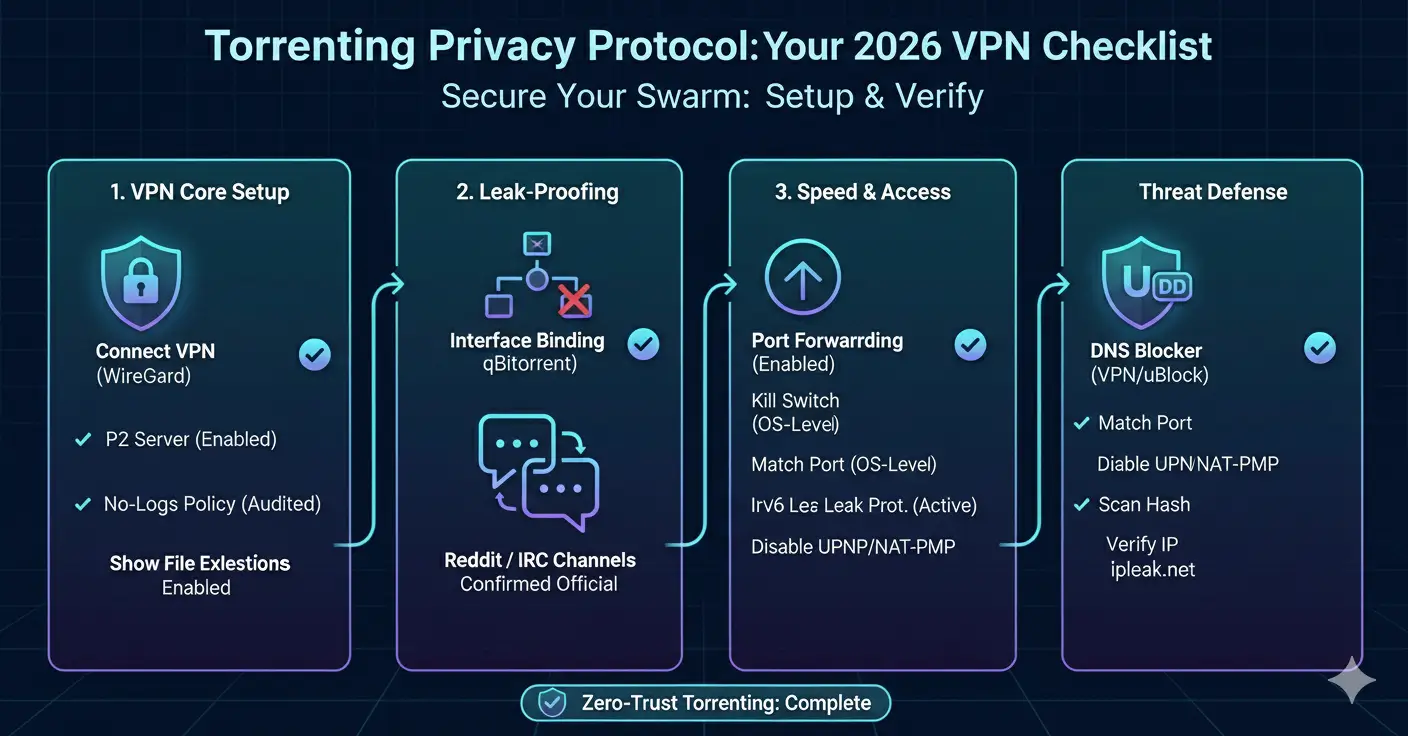
Your “Privacy Baseline” Checklist for 2026
Here’s the golden rule: never open your torrent client before your VPN is connected. If your torrent client auto-starts on boot, disable that setting. If you use interface binding (and you should), the client won’t be able to connect without the VPN anyway — but making this a habit prevents accidental leaks during the brief window before binding is verified.
Before Every Torrenting Session
- VPN is connected to a P2P-optimized server using WireGuard protocol
- Interface binding in qBittorrent is set to the VPN’s network adapter (desktop)
- “Block connections without VPN” is enabled in Android settings (mobile)
- Port forwarding is enabled and the port number is entered in your torrent client
- DNS-level ad blocker is enabled in VPN settings (NetShield, MACE, Threat Protection)
- uBlock Origin is active in your browser
- Verify: visit ipleak.net — your real IP should NOT appear anywhere on the page, including under “Torrent Address detection”
The “Total Failure” Test (Do This Once)
- Configure everything above
- Start a legal torrent download (Linux ISO)
- Disconnect your VPN manually while the download is active
- Verify: download speed drops to 0.0 KiB/s (interface binding) or all internet access stops (“Block connections without VPN”)
- Reconnect VPN — download resumes
If this test passes, your setup is leak-proof. If it fails, re-check your interface binding settings or Android VPN configuration.
FAQs
A VPN makes it functionally impossible to tie a specific download to your identity — provided you use a verified no-logs VPN (ProtonVPN, PIA, Mullvad). No monitoring bot can see your real IP, and the VPN provider has no records to hand over even if compelled. However, no tool provides absolute guarantees. A VPN is the strongest available protection, not a legal immunity card.
WireGuard adds minimal overhead — typically 3–8% speed reduction versus an unencrypted connection. On a 100 Mbps connection, expect 92–97 Mbps through the VPN tunnel.
OpenVPN is slower (15–25% reduction). Port forwarding often recovers more speed than the VPN costs, resulting in net-positive performance for most users.
Your ISP can see that you’re sending encrypted traffic to a VPN server’s IP address. They cannot see what that traffic is — not the filenames, not the destinations, not whether it’s BitTorrent or Netflix. Some ISPs throttle VPN traffic generally; using WireGuard on port 443 or enabling obfuscation (OpenVPN) can circumvent this.
Yes. Private trackers are more curated and have fewer copyright trolls, but your IP is still visible to every peer in the swarm. Private tracker communities also have internal rules about VPN usage — check your tracker’s FAQ before connecting.
Is port forwarding dangerous?
Port forwarding opens a single port on the VPN server to accept incoming connections for your torrent client. The risk is minimal: only the application listening on that port (your torrent client) can receive data through it. It does not expose other services on your device. ProtonVPN has confirmed they are not vulnerable to the historical “Port Fail” attack.
VPN vs. Tor for torrenting — which is better?
VPN, always. Tor is designed for low-bandwidth, anonymous web browsing. Routing BitTorrent traffic through Tor is extremely slow (unusable for anything beyond tiny files), overloads the Tor network, and can leak your IP through BitTorrent’s UDP-based DHT protocol (which doesn’t route through Tor’s TCP-only tunnels). Use Tor for accessing .onion sites. Use a VPN for downloading.
Wrapping Up
A VPN isn’t a luxury for torrent users. It’s the minimum viable configuration for not getting a legal notice.
The technical reality is simple: BitTorrent broadcasts your IP address to every peer sharing the same file. Copyright enforcement companies operate bots that join swarms specifically to harvest those IP addresses. Your ISP is legally compelled to forward their complaints to you.
A properly configured VPN — WireGuard protocol, interface binding in your torrent client, port forwarding enabled, DNS-level ad blocking active — eliminates all three attack vectors: peer surveillance, ISP monitoring, and malicious ads on torrent sites.
Set it up once. Test it once. Then forget about it and download in peace.
Get ProtonVPN → | Swiss privacy laws. Audited no-logs. Port forwarding. WireGuard. From $2.99/month.